

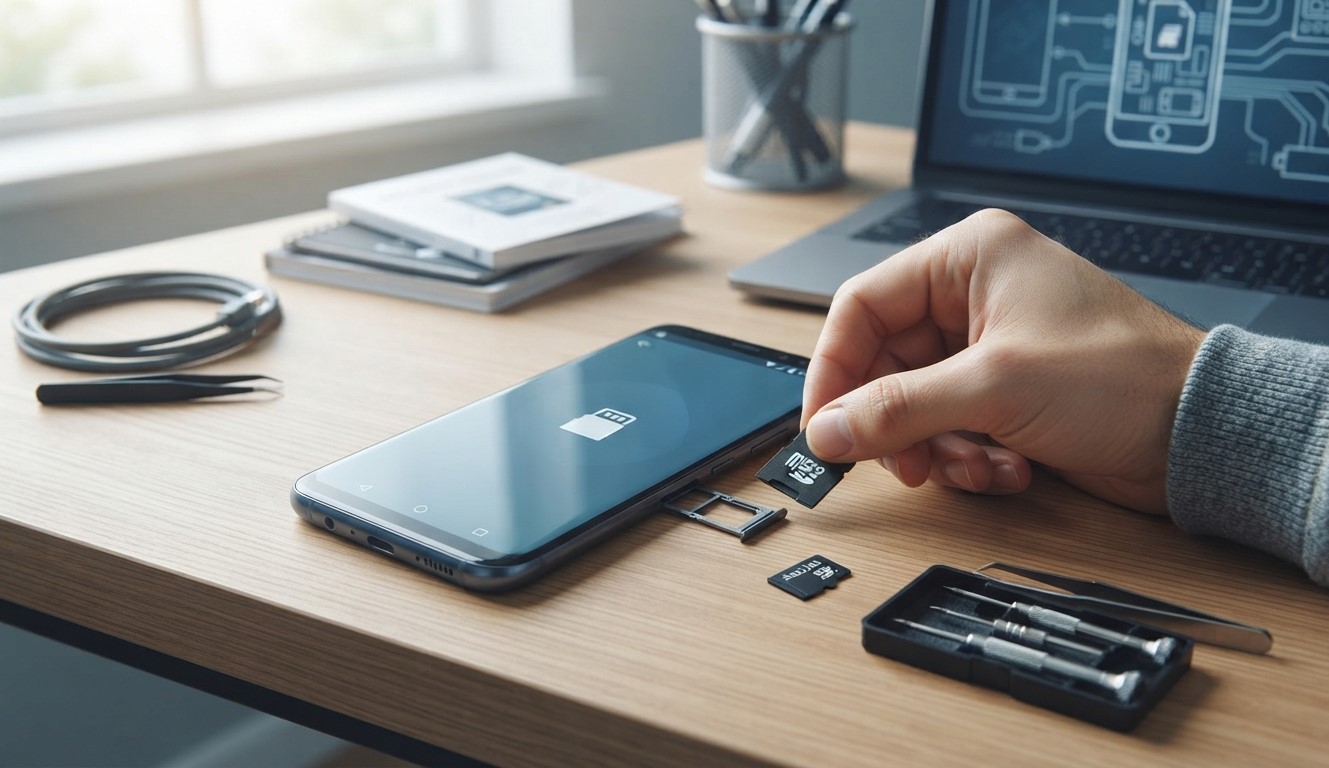
An SD card provides extra storage for photos, videos, documents, and other important files. However, sometimes a smartphone may suddenly stop recognizing the card or display an error stating that it cannot read it. This can prevent you from accessing important information and saving new files. If you experience this issue, understanding the possible causes can help you find a solution. Whether you need basic troubleshooting or professional Mobile Phone Repair Albany, identifying the source of the problem is the first step. Finding the best cell phone repair in Albany can also help when the issue involves damaged hardware. Reliable cell phone repair Albany services may assist with diagnosing persistent SD card problems.
Table of Contents
- Why Is Your Phone Not Recognizing an SD Card?
- How to Fix an SD Card That Is Not Detected
- When to Seek Professional Repair
- Tips to Prevent SD Card Problems
- Frequently Asked Questions
- Final Thoughts and Call to Action
1. Why Is Your Phone Not Recognizing an SD Card?
Several issues can prevent a smartphone from detecting or reading an SD card.
Incorrectly Inserted SD Card
If the card is not properly positioned in its tray, your phone may fail to recognize it. Even a slightly loose connection can interrupt communication.
Dirty or Damaged Contacts
Dust, dirt, or damage on the card’s metal contacts can prevent a proper connection. The SD card slot may also collect debris over time.
Corrupted SD Card
Unexpected removal, interrupted file transfers, or file system errors can corrupt an SD card. Your phone may then display an error or request that you format it.
Unsupported SD Card
Some smartphones support only specific SD card capacities or formats. An incompatible card may not work correctly.
Damaged SD Card Slot
A bent contact, loose slot, or internal hardware fault can prevent your phone from detecting an otherwise working card.
2. How to Fix an SD Card That Is Not Detected
Try these troubleshooting steps carefully before replacing the card.
Restart Your Phone
Restarting your device can refresh its system and resolve temporary detection problems. After restarting, check whether the SD card appears in your storage settings.
Remove and Reinsert the Card
Turn off your phone before removing the SD card. Check that it is correctly aligned in the tray, then insert it securely and restart your device.
Inspect the SD Card
Look for visible cracks, scratches, dirt, or damaged contacts. If necessary, gently clean the metal contacts with a soft, dry, lint-free cloth. Avoid liquids and excessive pressure.
Test the Card in Another Device
If possible, insert the card into a compatible phone or computer using an appropriate card reader. If it is not recognized elsewhere, the card itself may be damaged.
Check Storage Settings
Open your phone’s Settings and look under Storage to see whether the SD card appears. Menu options vary by Android device.
Avoid Formatting Before Backing Up
If your phone asks you to format the SD card, do not immediately accept. Formatting can erase stored information. If the files are important, consider professional data recovery assistance before making changes.
3. When to Seek Professional Repair
If your phone cannot recognize multiple working SD cards, the problem may involve the card reader, SIM/SD tray, or internal hardware.
Consider professional inspection if the SD card slot is loose, visibly damaged, or unable to maintain a connection. A technician can examine the slot and determine whether repair or replacement is necessary.
Professional Mobile Phone Repair Albany services may help diagnose persistent detection issues and recommend an appropriate solution.
4. Tips to Prevent SD Card Problems
Follow these practices to protect your SD card and stored information:
- Always safely eject the card before removing it.
- Avoid removing the SD card while files are transferring.
- Keep the card away from moisture, heat, and physical damage.
- Use an SD card compatible with your smartphone.
- Back up important photos and documents regularly.
- Avoid formatting the card unless necessary.
- Handle the card carefully when inserting or removing it.
5. Frequently Asked Questions
Why does my phone suddenly stop recognizing my SD card?
Possible reasons include a loose connection, corrupted files, damaged contacts, or a faulty SD card slot.
Can a damaged SD card be repaired?
Some file system errors can be resolved, but physically damaged cards may require professional data recovery or replacement.
Will formatting fix an unreadable SD card?
Formatting may resolve certain file system problems, but it usually erases existing data. Back up or recover important files first.
How can I check whether my SD card is faulty?
Test it in another compatible device or card reader. If it fails there too, the card may be damaged.
Can a phone’s SD card slot be replaced?
Depending on the phone model and design, a damaged card reader or related component may be repairable or replaceable.
6. Final Thoughts
A phone that cannot recognize or read an SD card may have a simple connection issue, corrupted files, an incompatible card, or damaged hardware. Carefully checking the card and trying basic troubleshooting can often help identify the cause. If the problem continues, professional assistance may be necessary. For Mobile Phone Repair Albany, help finding the best cell phone repair in Albany, or dependable cell phone repair Albany, consider having your device inspected by a qualified technician.
Call to Action
Is your smartphone refusing to recognize your SD card? Don’t risk losing access to important files by repeatedly formatting or handling the card. Contact Mobile Phone Repair Albany to discuss the issue and explore suitable repair options. Get your phone checked and find the right solution for your device!