

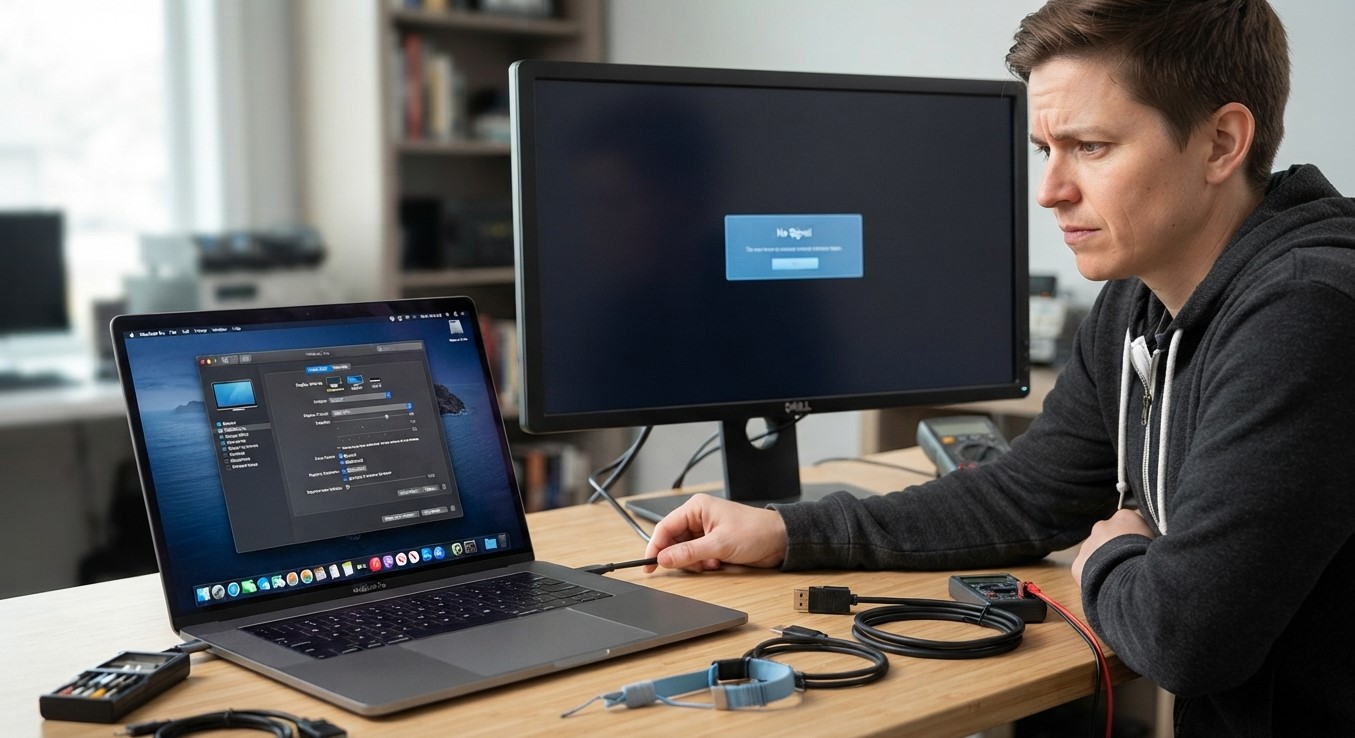
Connecting an external monitor to your laptop can improve productivity, make multitasking easier, and provide a larger display for work or entertainment. However, sometimes your laptop fails to detect the monitor or displays a connection error. This problem may be caused by faulty cables, incorrect display settings, outdated graphics drivers, or hardware issues. If basic troubleshooting does not help, professional computer repair Albany services can identify the problem. Finding the best computer repair in Albany or arranging on-site computer repair Albany can help you get your display setup working again.
Table of Contents
- Common Reasons a Laptop Cannot Detect an External Monitor
- Check Cables and Connection Ports
- Select the Correct Display Input
- Adjust Windows Display Settings
- Update Graphics Drivers
- Restart Your Laptop and Monitor
- Check Hardware Compatibility
- When to Seek Professional Repair
- Frequently Asked Questions
1. Common Reasons a Laptop Cannot Detect an External Monitor
Several issues can prevent a laptop from recognizing an external display. Understanding the possible causes makes troubleshooting easier.
Common reasons include:
- Damaged HDMI, DisplayPort, or USB-C cables
- Loose or faulty connection ports
- Incorrect monitor input settings
- Outdated or corrupted graphics drivers
- Unsupported display resolution or refresh rate
- Operating system glitches
- Incompatible adapters or docking stations
Start by checking the physical connections before changing software settings.
2. Check Cables and Connection Ports
A damaged cable or loose connection is one of the simplest reasons an external monitor may not work.
Disconnect the cable from both devices and reconnect it securely. If the screen remains blank, try another compatible HDMI, DisplayPort, or USB-C cable.
You can also test the monitor with another computer to determine whether the issue comes from the laptop or the display.
Inspect the connection ports for visible damage or debris. Never force a cable into a port because this could cause additional damage.
3. Select the Correct Display Input
External monitors often support multiple input sources. If your monitor is set to the wrong input, it may not display anything even when the laptop is connected properly.
Use the monitor’s physical buttons or menu to select the correct input source, such as HDMI, DisplayPort, or USB-C.
Make sure the selected input matches the port being used. After changing the setting, wait a few seconds to see whether the laptop display appears.
4. Adjust Windows Display Settings
Sometimes Windows detects the monitor but does not automatically extend or duplicate the display.
Press Windows + P to open the projection options. You can choose:
- PC screen only: Uses the laptop display.
- Duplicate: Shows the same content on both screens.
- Extend: Uses the external monitor as additional workspace.
- Second screen only: Displays content only on the external monitor.
If the monitor is still missing, open Settings, select System, then Display. Choose Detect, if available, to check for connected displays.
5. Update Graphics Drivers
Outdated or corrupted graphics drivers can prevent your laptop from recognizing external monitors correctly.
To check for driver updates:
- Right-click the Start button.
- Open Device Manager.
- Expand Display Adapters.
- Right-click your graphics device.
- Select Update Driver.
- Follow the instructions.
You can also visit your laptop manufacturer’s official website to find compatible graphics drivers.
Restart your laptop after installing updates and test the external monitor again.
6. Restart Your Laptop and Monitor
Temporary software glitches can sometimes interrupt communication between a laptop and an external display.
Turn off both devices, disconnect the display cable, and wait briefly. Reconnect the cable, turn on the monitor, and then start your laptop.
This simple process can refresh the connection and resolve temporary detection problems.
7. Check Hardware Compatibility
Not every laptop USB-C port supports video output. Some ports provide charging or data transfer only.
Check your laptop’s specifications to confirm whether the connection supports external displays. Also verify that your adapter or docking station supports the monitor’s resolution and connection type.
Using an incompatible adapter may prevent the display from working correctly.
8. When to Seek Professional Repair
If your laptop still cannot detect an external monitor after troubleshooting, the problem may involve a damaged display port, faulty graphics hardware, or internal connection issues.
Professional technicians can inspect the ports, test compatible cables, diagnose graphics problems, and recommend appropriate repairs.
When searching for computer repair Albany, choose a provider that offers reliable diagnostics and explains the repair options. The best computer repair in Albany should identify the actual cause before recommending replacements.
For added convenience, on-site computer repair Albany may provide technical assistance at your home or office, depending on service availability.
Frequently Asked Questions
1. Why is my laptop not detecting my external monitor?
Common causes include damaged cables, incorrect input settings, outdated graphics drivers, and incompatible adapters.
2. How do I force my laptop to detect a monitor?
Press Windows + P to check projection settings, then open Display Settings and select Detect if available.
3. Can an HDMI cable cause a monitor connection problem?
Yes. A damaged or incompatible HDMI cable can prevent your laptop from sending a video signal to the monitor.
4. Why does my monitor say No Signal?
This message usually means the monitor is not receiving a video signal. Check the cable, input source, laptop display settings, and connection ports.
5. Do I need professional repair if my external monitor is not working?
Not always. Many problems are caused by simple settings or cable issues. However, persistent connection failures may require professional hardware diagnostics.
Get Professional Computer Repair Assistance
A laptop that cannot detect an external monitor can disrupt your work, but checking cables, display settings, drivers, and hardware compatibility can often resolve the issue.
If your external display still does not work, contact Computer Repair Albany for professional troubleshooting and computer repair assistance.